
Why folder structure matters more than firms think
Most professional service firms don’t have a document problem. They have a findability problem.
Work gets created, reviewed, sent, signed, and filed across email threads, shared drives, desktops, and half-remembered folder paths. Everyone has their own system. Nobody has the system. And when someone needs a document from six months ago, or a new team member needs to find where things live, the cracks start to show.
As one firm owner told us during a recent demo: “We’ve got a crapload of documents in there, so it’s almost impossible to search. Even with certain naming conventions, it’s tough. You’ve gotta know where you’re looking, pretty much.”
That’s not an organization problem. That’s a system problem.
A well-designed folder structure isn’t about being tidy for the sake of it. It’s about making sure work actually gets finished, reviewed, approved, and delivered to clients, without anyone having to wonder where things are.
For accounting firms, legal practices, consultants, and other professional service firms, your folder structure is the foundation your entire workspace runs on. Get it right, and everything downstream, collaboration, compliance, client delivery, gets easier. Leave it to chance, and your team spends more time managing files than delivering work.
In 2026, with remote and hybrid teams now the norm for most professional services firms, the stakes are even higher. Your folder structure isn’t just an internal convenience. It’s the backbone of how distributed teams collaborate, how clients access their files through secure portals, and how your firm meets regulatory and compliance requirements.
What is a folder structure?
A folder structure is the hierarchical system you use to organize digital files, including documents, emails, templates, and client records, so your team can store, find, and manage them without friction.
Think of it as the skeleton of your firm’s document management system. Every client folder, every subfolder for correspondence or workpapers, every naming convention fits within this structure. When it works well, people don’t even notice it. When it doesn’t, it’s the reason your team can’t find the engagement letter from last quarter.
Check out our guide with ready to use folder structures:
Key components of an effective folder structure
Hierarchy. Folder structures are built as a tree: parent folders contain subfolders, which contain more subfolders. For a professional service firm, this typically flows from client name, to financial year, to document categories (correspondence, workpapers, permanent files, etc.).
Consistency. When every client follows the same structure, any team member can navigate any client’s files without a learning curve. This is especially critical during busy season, staff changes, or when scaling.
Naming conventions. Clear, consistent file and folder names make search reliable and reduce confusion. A well-named folder eliminates guesswork. For detailed guidance on building naming systems that scale, see our guide on how to create a successful file naming convention.
Access control. Sensitive client documents, like tax records, financial statements, and engagement letters, need appropriate permissions so the right people have access and the wrong people don’t.
Version control. Professional services work goes through drafts. Your folder structure should make it easy to find the current version of any document without opening three files to check. We’ve spoken with firms who actually turned off their previous DMS automation entirely because of versioning chaos. People would work on a document, close down for the day, and it wouldn’t save. The next morning someone would open a different version, and the whole system fell apart. They went back to basics because the “automation” was creating more problems than it solved.
Search and retrieval. A great folder structure complements search, so even if someone doesn’t know the exact file path, they can find what they need through keywords, metadata, or full-text search. The best systems search file names, folder names, and the contents of every file and email, so your team doesn’t need to remember where something was filed to find it.
Are directory structures and folder structures the same?
In practice, yes. The terms “directory structure” and “folder structure” are used interchangeably. Both describe the same hierarchical system of organizing files.
- Directory structure is the traditional term used in Unix/Linux systems, where directories are the containers that hold files and other directories.
- Folder structure is the equivalent in graphical environments like Windows, macOS, and modern document management platforms.
For professional service firms evaluating how to organize client work, the terminology doesn’t matter. What matters is the design: how your folders are structured, what they contain, and whether your team can navigate them without thinking twice.
What is a directory tree?
A directory tree, also called a file tree or folder tree, is a visual representation of your folder structure. It shows how directories, subdirectories, and files are nested and related to each other.
Components of a directory tree
- Root directory. The starting point, often the firm name or the top-level client list.
- Parent directories. Each folder sits inside a parent. For example, a client’s financial year folder sits inside their main client folder.
- Subdirectories. Branches beneath the parent: correspondence, workpapers, permanent files, source documents.
- Files. The individual documents: engagement letters, tax returns, financial statements, emails.
Hierarchical folder structures
Hierarchical folder structures organize files in a tree-like format with a single root at the top and branching subdirectories beneath. This is the most common approach in professional service firms, and for good reason: it mirrors how client work is actually organized.
The key is that the hierarchy reflects how work moves through your firm, not just where files get dumped. A folder structure built around your workflow means documents are where they’re expected to be at every stage: onboarding, document creation, review, delivery, and archive.
Common ways to organize hierarchical structures
- Client-based. The most common for professional services, organized by client name, then financial year, then document type.
- Chronological. Files grouped by creation or modification date, useful within client folders for workpapers or correspondence.
- Functional/departmental. Files organized by team or function, common in larger firms with distinct advisory, tax, and audit teams.
- Project-based. Files organized around specific engagements or campaigns, common in consulting and creative industries.
- Asset type. Files grouped by format (documents, images, spreadsheets), typically used alongside other methods.
Why create folder structures?
For professional service firms, a well-designed folder structure isn’t a nice-to-have. It’s the difference between work that gets finished cleanly and work that stays permanently “in progress.”
Sometimes the urgency is quiet, a slow accumulation of workarounds and frustration. Other times it’s immediate. One firm owner told us she started looking for a solution in January because: “My fear of not having anything in place during the upcoming tax season is more than my fear of living through what we’ve been using for years.”
That’s the tipping point most firms hit eventually. The question is whether you get ahead of it or let tax season make the decision for you.
The real benefits
Work gets finished, not just filed. When every document has a clear home, nothing gets lost between draft and delivery. Engagement letters, tax returns, and client correspondence all flow to the right place, and your team can move work from start to done without hunting for files.
Anyone can find anything. A consistent folder structure means a new hire, a covering team member, or your practice manager can locate any client document without asking around. If someone left your firm tomorrow, could anyone step in and know exactly where everything stands? That’s the test.
Collaboration happens naturally. When your team knows where to find and save files, coordination improves without extra meetings or follow-up emails. Everyone works from the same structure, which means less confusion and fewer duplicated efforts. For teams working across locations or offices, a collaborative document sharing approach makes this even smoother.
Compliance and security are built in. A clear structure makes it easier to apply appropriate access controls, maintain audit trails, and meet regulatory requirements for data management and retention. When everything has a place, nothing slips through the cracks. Moving your documents to secure cloud storage adds another layer of protection.
Backup and recovery are straightforward. A well-organized structure makes selective backup and targeted file recovery far simpler. You know what’s where, so you can protect what matters and restore specific data without guesswork.
Your firm can grow without chaos. A folder structure built with scalability in mind accommodates new clients, new team members, and new service lines without becoming unmanageable. The firms that feel “organized” at 50 clients are the ones that built the right foundation at 10.
For firms moving away from paper-based workflows, a well-designed digital folder structure is also the foundation of a successful paperless office transition. The structure you build for digital documents determines whether the shift to paperless actually sticks.
Folder structure best practices for professional service firms
Here’s where the generic advice ends and the practical guidance begins. These best practices are drawn from how high-performing accounting and professional service firms actually organize their work.
1. Start with a standardized template
Every client should follow the same folder structure from day one. This isn’t about rigidity. It’s about giving your team a consistent starting point so nobody has to reinvent the wheel for each new client.
Pro tip from firms that do this well: When templating folder structures, add as many folders as you could conceivably need. It’s far easier to delete an empty folder than to add one retroactively across hundreds of clients.
2. Organize by client, then by year, then by category
The most effective professional services folder structures follow this pattern:
Client Name, then Financial Year, then Document Category
This ensures client work is easy to find, year-over-year comparisons are simple, and nothing gets misfiled across clients or periods.
3. Create a permanent folder for every client
Some documents don’t belong to a specific financial year: engagement letters, business registration documents, trust deeds, and other foundational records. A “Permanent” folder at the client level keeps these accessible without cluttering annual workpapers.
4. Decide where correspondence lives, and stick with it
One of the most common sources of inconsistency: some team members file emails by year, others file them directly under the client. Either approach works, but pick one and make it the standard.
Top tip: Many practices prefer keeping correspondence directly underneath the client folder so all emails are in one place, not sorted by year. This makes it faster to see the full communication history at a glance. A good email management tool can automate this filing entirely.
5. Don’t forget the client portal folder
If you share documents with clients, such as tax returns, financial statements, or documents for signing, a dedicated portal or client-facing folder keeps shared files separate from internal workpapers. This reduces risk and makes it clear what’s been delivered versus what’s still in progress. Learn more about setting up client portal software that integrates with your folder structure.
6. Plan for archive from the start
Create an archive or historical folder structure so completed years can be moved out of the active view without being lost. This keeps the working environment clean and current while preserving everything for compliance and reference.
7. Automate folder creation wherever possible
Manually creating folder structures for every new client is one of those tasks that feels small but compounds over time. The best firms automate this: a new client or job triggers the creation of a complete, templated folder structure with the right subfolders already in place.
When firms see this in action for the first time, a client created in their practice management system and the entire folder structure appearing automatically, the reaction is almost always the same. It replaces what used to be a manual, error-prone process with something that just happens.
Even better: when the new financial year rolls around, you should be able to generate new year folders in bulk across every client at once, not one at a time.
8. Stop moving files, start controlling access
One of the biggest sources of anxiety we hear from firms is the fear of moving files. And rightfully so. Every time you move a document, something can break, get lost, or end up in the wrong place.
The better approach: instead of physically moving documents between locations, control access through permissions. Turn visibility on when someone needs a file. Turn it off when they don’t. The file stays where it belongs.
9. Consolidate before you organize
Many firms are running a file server and SharePoint and a shared drive and email attachments scattered everywhere. Before optimizing your folder structure, consolidate everything into one place. It’s far easier to organize documents when they all live in a single workspace rather than spread across three or four systems. If you’re evaluating platforms, our comparison of the best document management systems can help you find the right fit.
10. Train the team, and document the standard
Even the most intuitive structure needs a brief knowledge base or reference guide so new team members can get up to speed quickly. Document your folder structure conventions, share them during onboarding, and revisit them periodically as the firm evolves.
What makes adoption stick isn’t complexity. It’s familiarity. As one firm put it after switching: “It’s so familiar. Everyone knows how to do this stuff, so why create all these weird things that people have to learn? It takes them two years to learn and then in that time something new has come out.”
The best folder structure is one your whole team actually uses, not just the person who designed it.
Folder structure examples by industry
While the core principles of folder structure design are universal, the specific implementation varies by industry. Here are proven folder structure examples from three industries where document organization is critical.
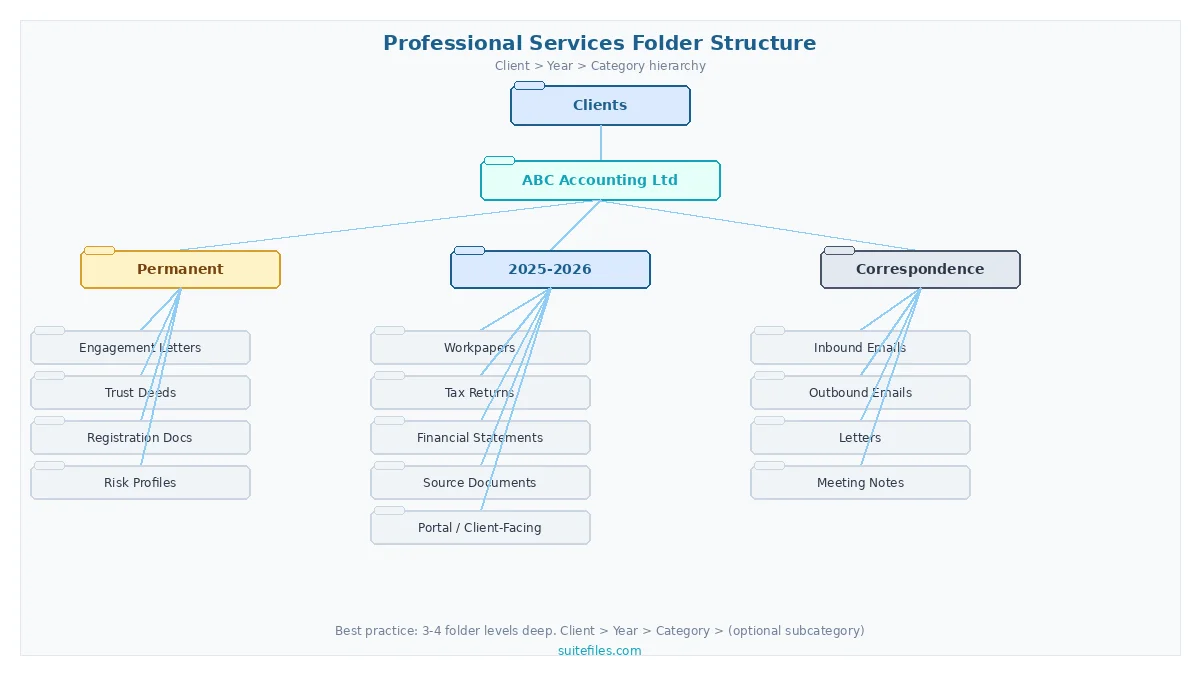
Accounting firm folder structure
Accounting firms handle the highest volume of recurring, time-sensitive client work of any professional services vertical. Your folder structure needs to support tax compliance deadlines, annual audit cycles, and the constant flow of source documents from clients.
A proven accounting folder structure follows this pattern:
Client Name
Permanent (engagement letters, authority to act, business registrations)
2026 (current financial year)
Tax Returns
Financial Statements
Working Papers
Source Documents
Correspondence
2025 (prior year)
Correspondence (all years)
The critical distinction for accounting firms is separating source documents from working papers from final deliverables. Source documents are what the client provides. Working papers are your analysis and calculations. Final documents are what goes back to the client or to the tax authority. Mixing these categories is one of the most common causes of filing errors during busy season.
Firms using practice management tools like Xero or QuickBooks can automate folder creation when a new client or job is added, ensuring every engagement starts with the correct structure already in place.
Legal practice folder structure
Law firms need folder structures that support matter management, court deadlines, and strict confidentiality requirements. A typical legal document management folder structure follows this pattern:
- Client Name
- Permanent (engagement letters, conflict checks, retainer agreements)
- Matter 001 – [Description]
- Correspondence
- Pleadings and Court Documents
- Discovery
- Research and Memos
- Billing
- Matter 002 – [Description]
Legal practices often organize by matter rather than financial year, since a single client may have multiple concurrent cases running across different time periods. The key is keeping each matter self-contained so any lawyer can pick up the file and understand where things stand.
Construction and engineering folder structure
Engineering and construction firms deal with large volumes of technical documents, drawings, permits, and contractual paperwork. A numbered prefix convention helps keep things in logical order:
- Project Name – [Project Number]
- 01 – Contracts and Agreements
- 02 – Drawings and Plans (Current Revision)
- 03 – Specifications
- 04 – Permits and Approvals
- 05 – Correspondence
- 06 – RFIs and Submittals
- 07 – Progress Reports and Photos
- 08 – Invoicing and Variations
- 09 – Handover and Closeout
The numbered prefix ensures folders always appear in the same order regardless of how the operating system sorts them. For construction firms managing dozens of active projects, this consistency eliminates the “where did they put it” problem entirely.
Insurance and financial services folder structure
Insurance agencies and financial advisory firms need structures that support policy management, compliance documentation, and client lifecycle tracking:
- Client Name
- Permanent (KYC documents, identification, risk profiles)
- Policies / Active
- Policy Type – [Provider] – [Policy Number]
- Renewal correspondence
- Claims
- Compliance (annual reviews, disclosure statements)
- Correspondence
The distinguishing factor for financial services is the compliance layer. Every client interaction, recommendation, and document exchange may need an audit trail. Building compliance folders into the structure from day one means your team doesn’t have to retrofit them before an audit.
How the right workspace makes folder structures work
A folder structure is only as effective as the system it lives in. When folders, documents, emails, templates, and client collaboration all live in one cloud-based workspace, and folder creation is automated rather than manual, the structure stops being something your team has to maintain and becomes something that simply works underneath the firm.
Teams that rely on browser-based access to their files should also explore the top web-based document management systems available today.
The best-performing firms treat their folder structure not as an organizational exercise, but as the foundation of how work runs from start to finish: client onboarding, document creation, review, signing, delivery, and filing, all flowing through one system.
Whether you need document management for a small business or a platform that scales across hundreds of clients, the principle is the same. Your folder structure should be the foundation, not the bottleneck.
That’s the difference between a folder of files and an operating system for your firm.
After seeing what that looks like in practice, one team member turned to his colleague and said: “Why didn’t you find this five months ago? I just can’t believe it. What the hell?”
His colleague’s response? “Yeah, it’s what we want, isn’t it?”
It usually is.
Frequently asked questions about folder structures
How many levels deep should a folder structure go?
For most professional service firms, three to four levels is the sweet spot. A typical structure goes: Client Name (level 1), Financial Year (level 2), Document Category (level 3), and optionally a subcategory (level 4). Going deeper than four levels makes navigation frustrating and search less reliable. If you find yourself needing more depth, it usually means the top-level categories need to be restructured rather than adding more subfolders.
What is the best folder structure for a small business?
Small businesses with fewer than 50 clients should start with a simple client-based structure: Client Name, then Year, then three to five document categories (Correspondence, Working Files, Final Documents, Permanent). Keep it simple and consistent. The most common mistake small firms make is overcomplicating the structure before they need to. Start lean, and only add complexity when you have a clear reason. A document management system built for small business can automate this from the start.
How do you organize shared folders for a team?
The key to shared folder organization is standardization and access control. Every team member should follow the same folder structure, and permissions should be set so people can access what they need without seeing what they shouldn’t. Use templates to create identical folder structures for each new client or project, and assign clear ownership for who maintains the structure. The biggest risk with shared folders is “folder drift,” where individuals create their own variations over time.
Should I organize files by date or by project?
For professional service firms, organize by client or project first, then by date within that structure. Client-based organization (Client, then Year, then Category) makes it easy to find everything related to a specific client in one place. Date-based organization as the primary method makes it nearly impossible to get a complete picture of a client’s history. Use dates as a secondary layer within client folders, not as the top-level structure.
How do you migrate an existing folder structure to a new system?
Start by auditing your current structure to identify what’s working and what’s causing problems. Map your existing folders to the new structure before moving anything. Most firms find it’s best to migrate one client or department at a time rather than doing everything at once. Clean up obvious issues during the migration, such as duplicate files, orphaned folders, and inconsistent naming, but don’t try to fix everything simultaneously. A phased approach reduces risk and gives your team time to adjust. See our document management strategy guide for a full migration framework.
What is the best folder structure for an accounting firm?
The best folder structure for an accounting firm organizes by Client Name, then Financial Year, then document type (Tax Returns, Financial Statements, Working Papers, Source Documents, Correspondence). Include a Permanent folder at the client level for engagement letters, authority documents, and business registrations that do not change year to year. Automate folder creation when new clients or jobs are added through your practice management integration, and keep a separate Correspondence folder at the client level so email history is not scattered across financial years.
How do you set up a folder structure for a remote team?
Remote and hybrid teams need folder structures hosted in a cloud document management system rather than a local file server. The structure itself follows the same principles (organized by client, then year, then category), but access control becomes more important. Set permissions so each team member can reach the files they need without exposing confidential client data. Use standardized templates so every new client folder is identical regardless of who creates it. Cloud-based platforms also give remote teams real-time search across all files, which reduces the reliance on memorizing folder paths.
Can you automate folder structure creation?
Yes. The most efficient firms automate folder creation entirely. When a new client is added to the practice management system, a complete folder structure with the correct subfolders is generated automatically. The same applies at the start of each financial year, where new year folders can be created in bulk across every client at once. Automation eliminates the manual work, reduces errors from inconsistent structures, and ensures every client starts with the same standard. Platforms that integrate with tools like Xero, Karbon, and QuickBooks can trigger folder creation as part of the onboarding workflow.
What is a folder structure diagram?
A folder structure diagram is a visual representation of how your folders, subfolders, and files are organized in a hierarchical tree format. It shows the relationships between parent folders and their contents at each level. Folder structure diagrams are useful for planning a new system, documenting an existing one for team training, or comparing different organizational approaches before committing to a structure. Most professional service firms use three to four levels in their diagrams: client, year, category, and an optional subcategory layer.
How do you set up folder structures for multiple clients?
The most efficient approach is to create a master folder template that reflects your standard client workflow, then replicate it for each new client. Manually creating folders for every client is time-consuming and leads to inconsistencies. The best document management systems let you automate this: when a new client is added to your practice management software, the complete folder structure generates automatically. This ensures every client has the same organization from day one, regardless of which team member sets them up.
What are the most common folder structure mistakes?
The biggest mistakes professional service firms make with folder structures are: creating too many levels of depth (more than four makes navigation painful), using inconsistent naming across clients, letting individual team members create their own variations, not having a permanent folder for long-lived documents, and failing to plan for archive and year-end rollover. The root cause is usually the same: no documented standard and no automation to enforce it. Start with a simple, consistent template and use automation to maintain it across your entire client base.
Ready to see what a folder structure looks like when it is built into a complete workspace? SuiteFiles gives professional services firms a single platform for documents, emails, templates, and client collaboration, with automated folder creation that eliminates the manual setup entirely.